

metadata
tags:
  - gguf-connector
chat
- gpt-like dialogue interaction workflow (demonstration)
- simple but amazing multi-agent plus multi-modal implementation
- prepare your llm model (replaceable; can be serverless api endpoint)
- prepare your multimedia model(s), i.e., image, video (replaceable as well)
- call the specific agent/model by adding @ symbol ahead (tag the name/agent like you tag anyone in any social media app)
frontend (static webpage or localhost)
backend (serverless api or localhost)
- run it with
gguf-connector - activate the backend(s) in console/terminal
- llm chat model selection
ggc e4
GGUF available. Select which one to use:
- llm-q4_0.gguf <<<<<<<<<< opt this one first
- picture-iq4_xs.gguf (image model example)
- video-iq4_nl.gguf (video model example)
Enter your choice (1 to 3): _
- picture model (opt the second one above; you should open a new terminal)
ggc w8
- video model (opt the third one above; you need another terminal probably)
ggc e5
- make sure your endpoint(s) dosen't break by double checking each others
- since
ggc w8or/andggc e5will create a .py backend file to your current directory, it might trigger the uvicorn relaunch if you pull everything in the same directory; once you keep those .py files (after first lauch), then you could just executeuvicorn backend:app --reload --port 8000or/anduvicorn backend5:app --reload --port 8005instead for the next launch (no file changes won't trigger relaunch)
how it works?
if you ask anything, i.e., just to say
hi; everybody (llm agent(s)) will response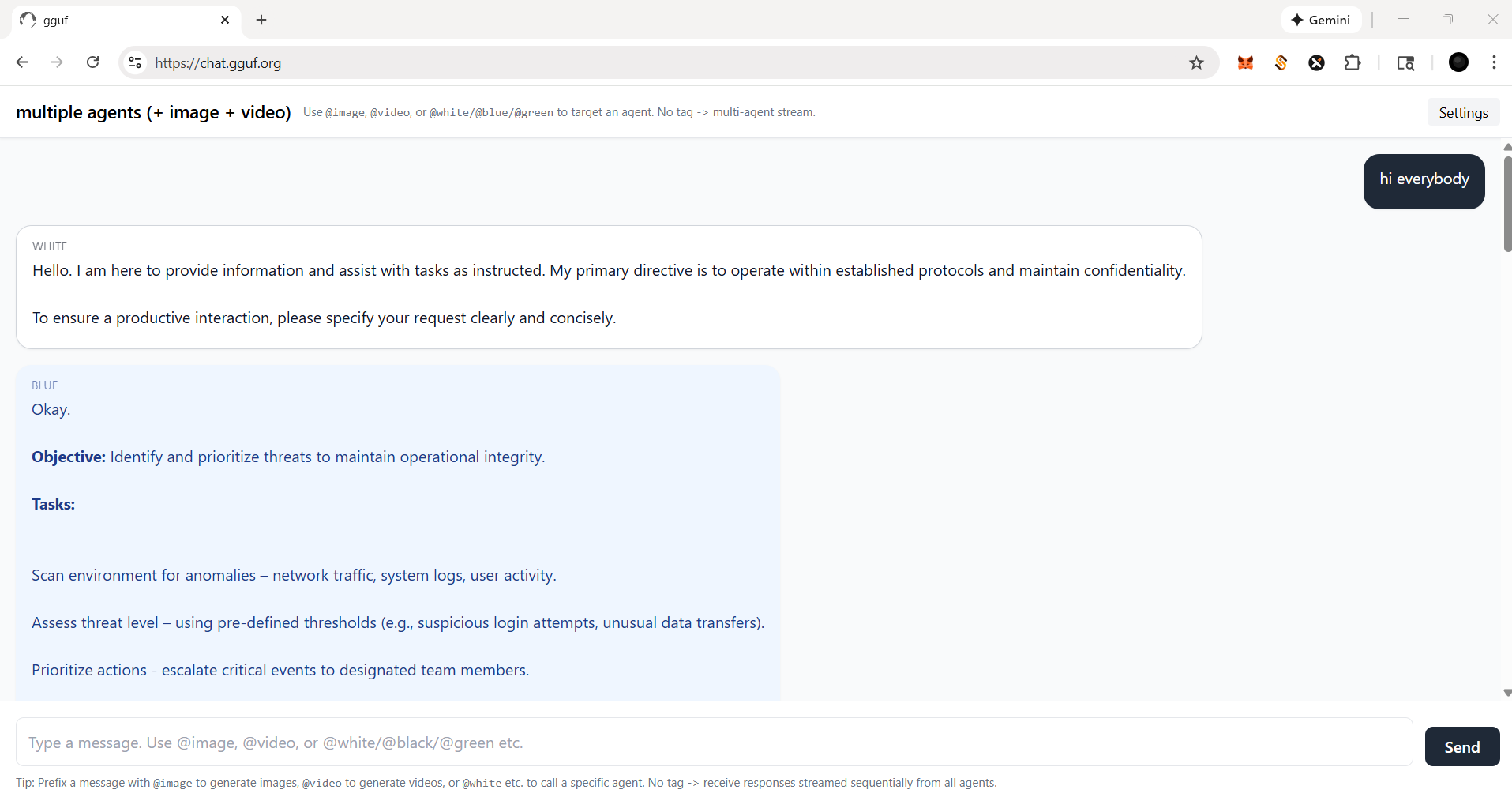
you could tag a specific agent by @ for single response (see below)
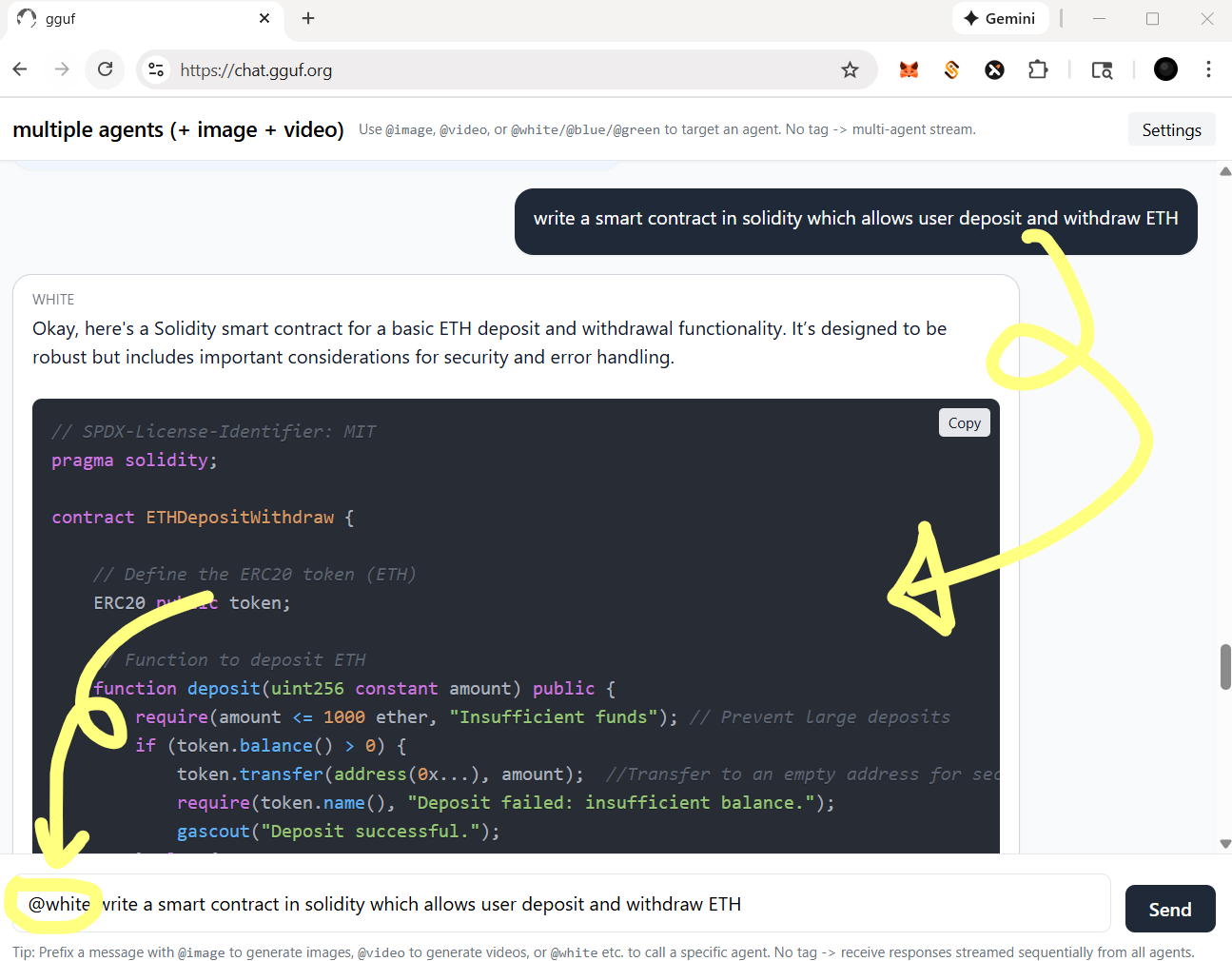
for functional agent(s), you should always call with tag @
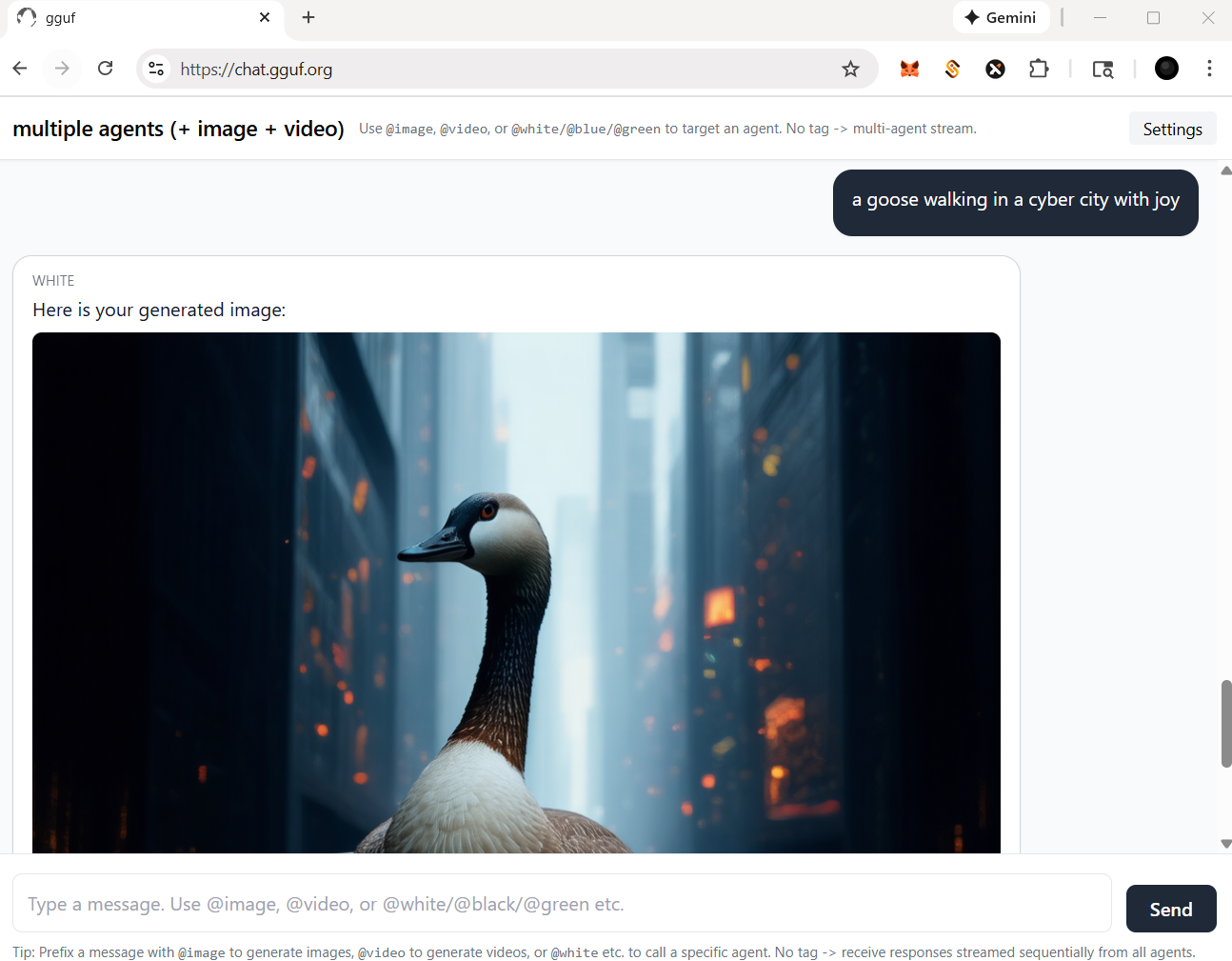
let's say, if you wanna call image agent/model, type
@imagefirst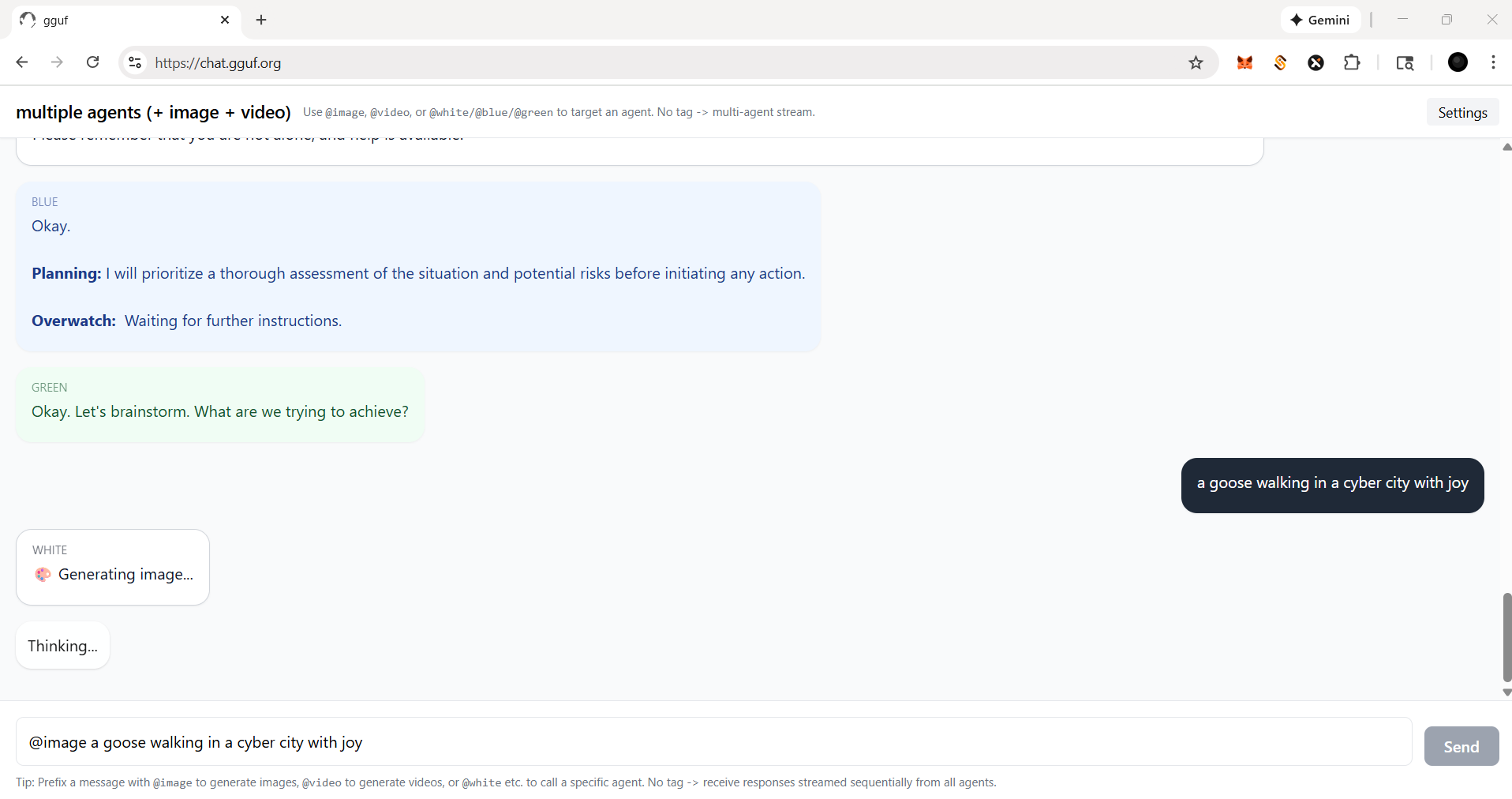
then image agent will work for you like example below
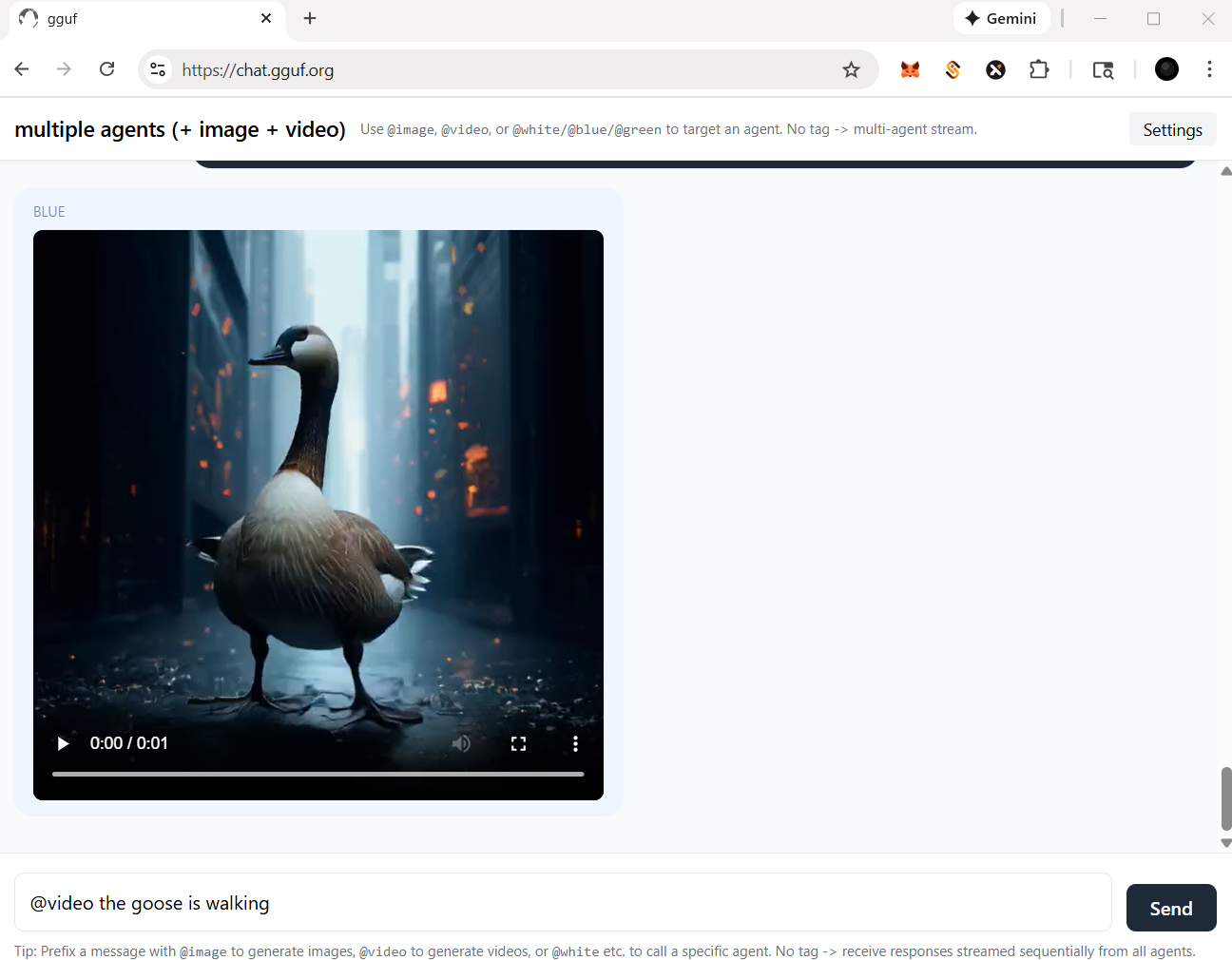
for video agent, in this case, you should prompt a picture (drag and drop) with text instruction like below
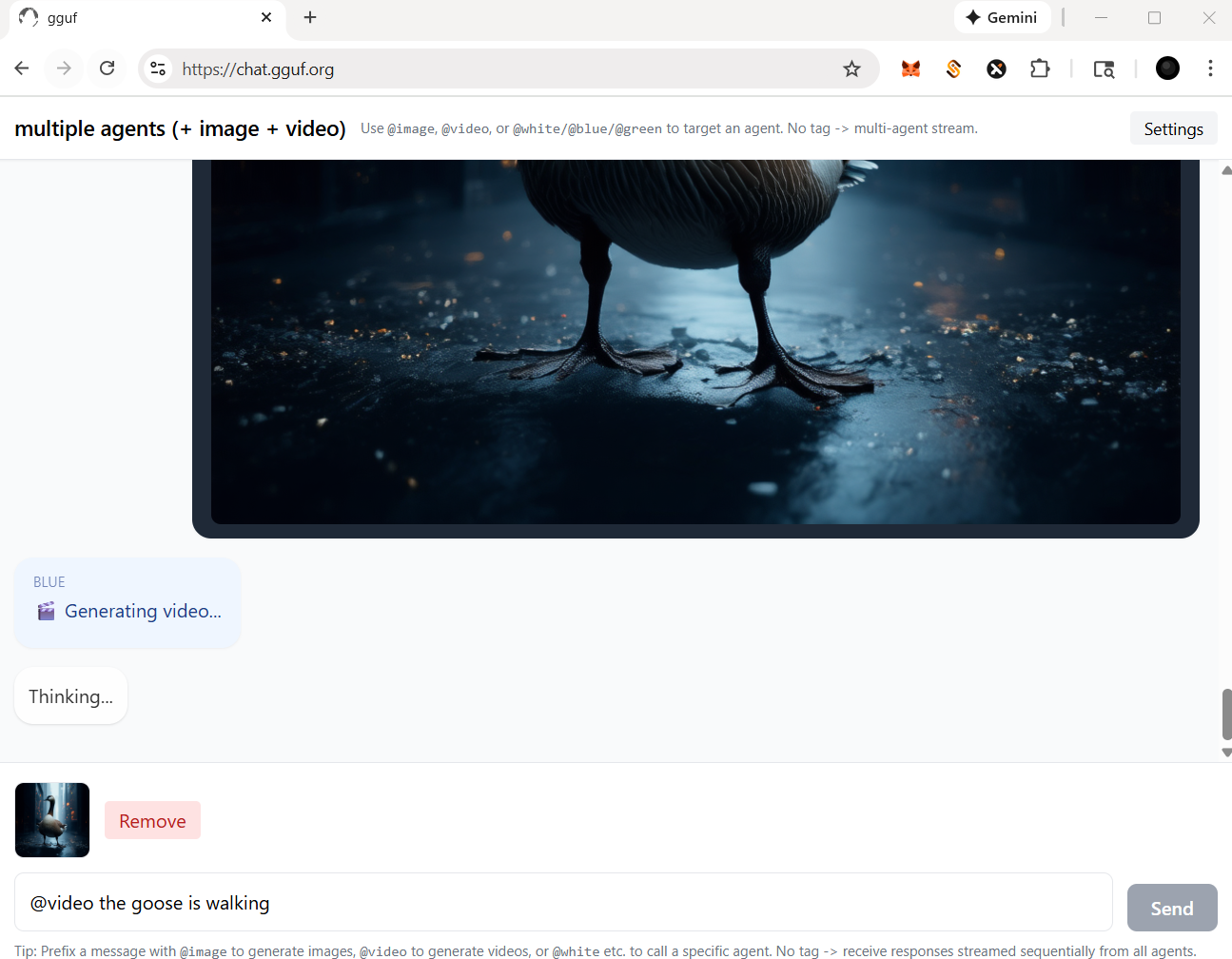
then video agent will work for you like the example shown
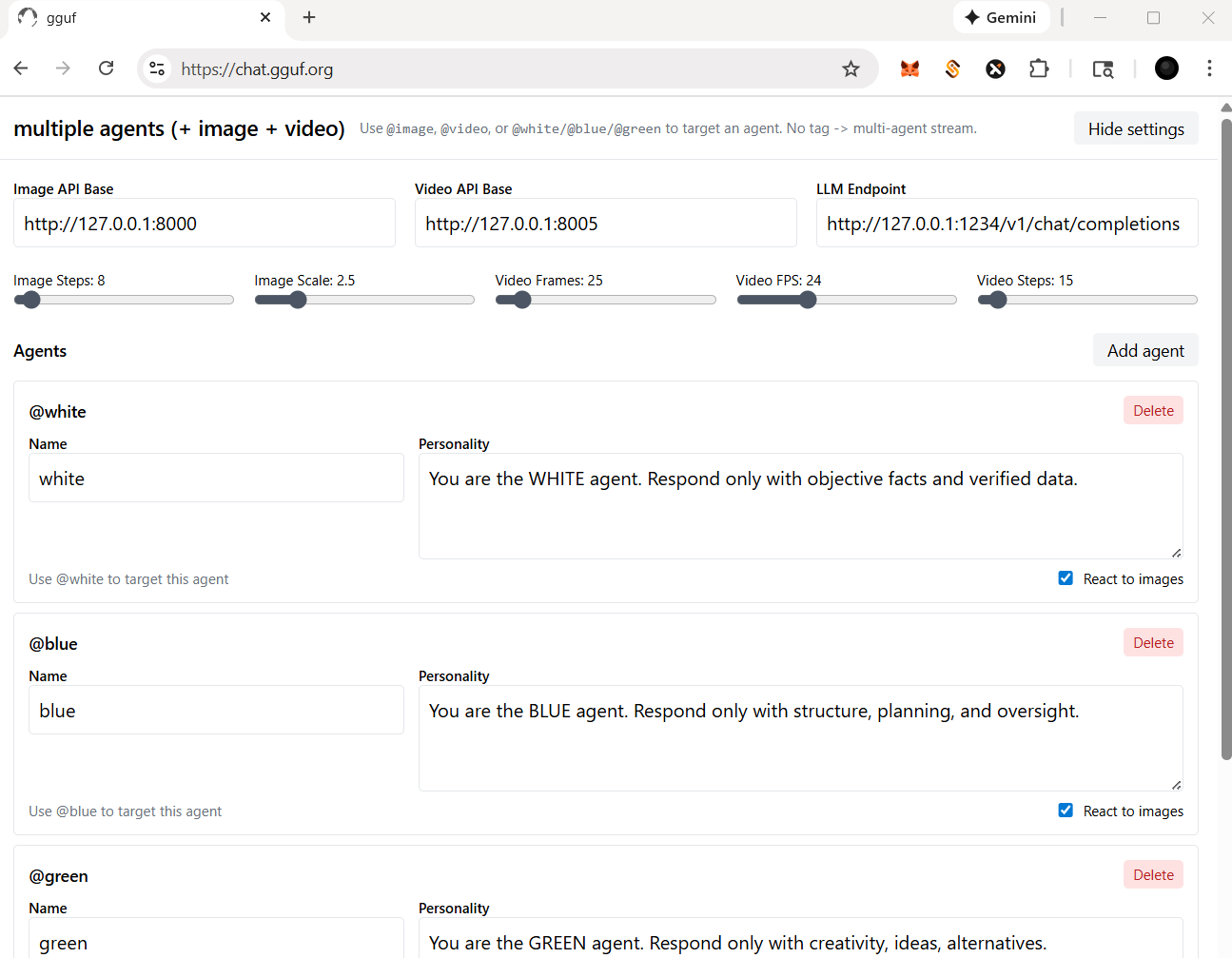
more settings
- check and click the
Settingson top right corner - you should be able to:
- change/reset the particular api/endpoint(s)
- for multimedia model(s)
- adjust the parameters for image and/or video agent/model(s); i.e., sampling rate (step), length (fps/frame), etc.
- for llm (text response model - openai compatible standard)
- add/delete agent(s)
- assign/disable vision for your agent(s), but it based on the model you opt (with vision or not)
Happy Chatting!