

A newer version of the Gradio SDK is available:
6.1.0
comments: true
description: Learn how to view image results inside a compatible VSCode terminal.
keywords: >-
  YOLOv8, VSCode, Terminal, Remote Development, Ultralytics, SSH, Object
  Detection, Inference, Results, Remote Tunnel, Images, Helpful, Productivity
  Hack
Viewing Inference Results in a Terminal
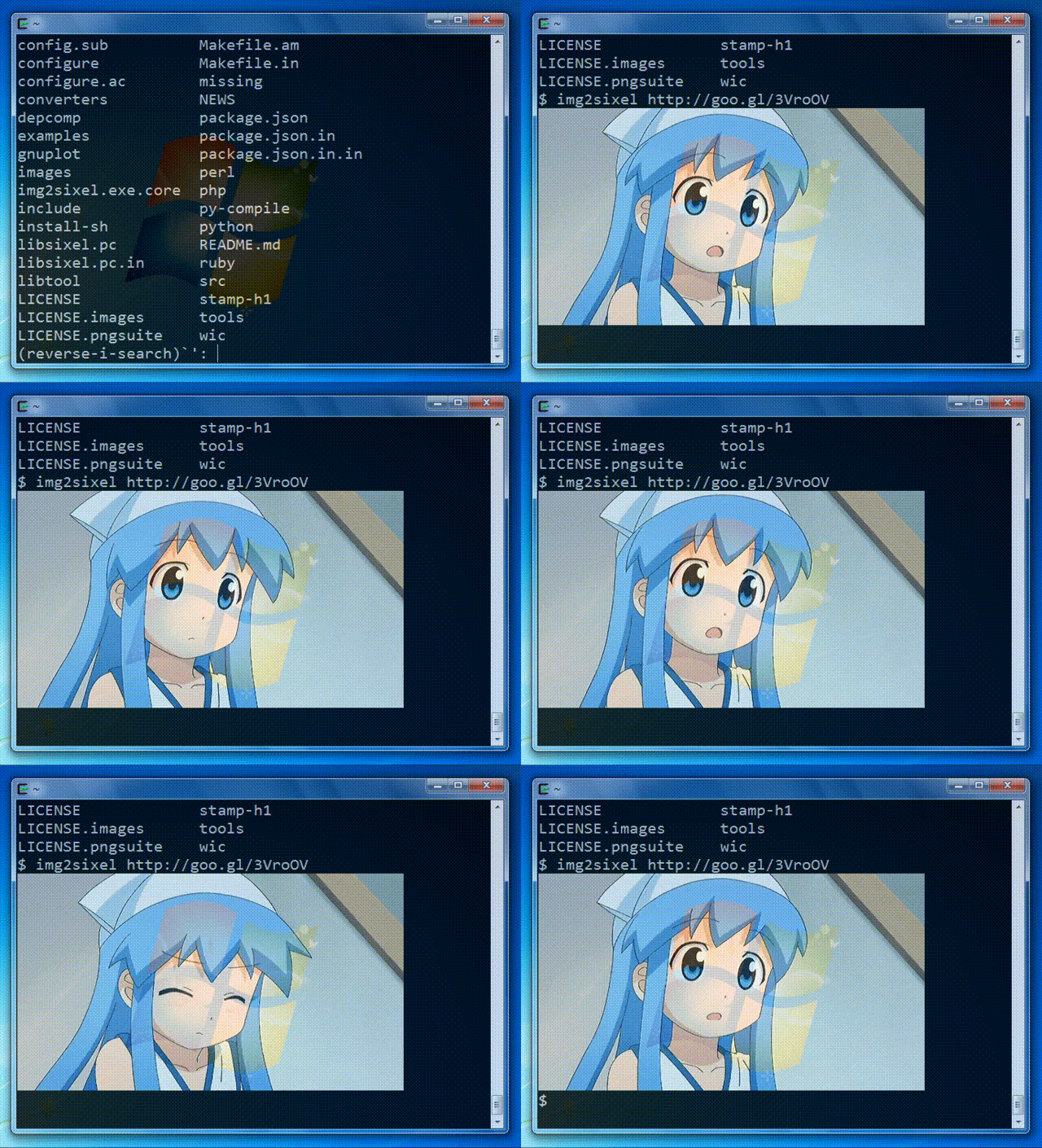
Image from the libsixel website.
Motivation
When connecting to a remote machine, normally visualizing image results is not possible or requires moving data to a local device with a GUI. The VSCode integrated terminal allows for directly rendering images. This is a short demonstration on how to use this in conjunction with ultralytics with prediction results.
!!! warning
Only compatible with Linux and MacOS. Check the VSCode [repository](https://github.com/microsoft/vscode), check [Issue status](https://github.com/microsoft/vscode/issues/198622), or [documentation](https://code.visualstudio.com/docs) for updates about Windows support to view images in terminal with `sixel`.
The VSCode compatible protocols for viewing images using the integrated terminal are sixel and iTerm. This guide will demonstrate use of the sixel protocol.
Process
First, you must enable settings
terminal.integrated.enableImagesandterminal.integrated.gpuAccelerationin VSCode."terminal.integrated.gpuAcceleration": "auto" # "auto" is default, can also use "on" "terminal.integrated.enableImages": false
Install the
python-sixellibrary in your virtual environment. This is a fork of thePySixellibrary, which is no longer maintained.pip install sixelImport the relevant libraries
import io

import cv2 as cv

from ultralytics import YOLO
from sixel import SixelWriter
Load a model and execute inference, then plot the results and store in a variable. See more about inference arguments and working with results on the predict mode page.
from ultralytics import YOLO # Load a model model = YOLO("yolov8n.pt") # Run inference on an image results = model.predict(source="ultralytics/assets/bus.jpg") # Plot inference results plot = results[0].plot() #(1)!- See plot method parameters to see possible arguments to use.
Now, use OpenCV to convert the
numpy.ndarraytobytesdata. Then useio.BytesIOto make a "file-like" object.# Results image as bytes im_bytes = cv.imencode( ".png", #(1)! plot, )[1].tobytes() #(2)! # Image bytes as a file-like object mem_file = io.BytesIO(im_bytes)- It's possible to use other image extensions as well.
- Only the object at index
1that is returned is needed.
Create a
SixelWriterinstance, and then use the.draw()method to draw the image in the terminal.# Create sixel writer object w = SixelWriter() # Draw the sixel image in the terminal w.draw(mem_file)
Example Inference Results
!!! danger
Using this example with videos or animated GIF frames has **not** been tested. Attempt at your own risk.
Full Code Example
import io

import cv2 as cv

from ultralytics import YOLO
from sixel import SixelWriter

# Load a model
model = YOLO("yolov8n.pt")

# Run inference on an image
results = model.predict(source="ultralytics/assets/bus.jpg")

# Plot inference results
plot = results[0].plot() #(3)!

# Results image as bytes
im_bytes = cv.imencode(
    ".png", #(1)!
    plot,
    )[1].tobytes() #(2)!

mem_file = io.BytesIO(im_bytes)
w = SixelWriter()
w.draw(mem_file)
- It's possible to use other image extensions as well.
- Only the object at index
1that is returned is needed. - See plot method parameters to see possible arguments to use.
!!! tip
You may need to use `clear` to "erase" the view of the image in the terminal.